NetSoins is care management software used in medico-social facilities (EHPADs, SSIADs, and assisted-living residences) to manage resident records, track care activities, and coordinate between care teams. Accessing an account requires using a web portal specific to each facility, which often causes confusion: several addresses circulate online, and they don’t all lead to the right service.
NetSoins portal and the Teranga name: why the confusion persists
The word Teranga appears in several contexts online. It refers to the former publisher of NetSoins software (Teranga Software), as well as associations, service companies, and even platforms unrelated to the medico-social sector. Searching for “NetSoins Teranga login” often brings up generic pages or authentication portals that have nothing to do with care management software.
The reason is technical. Each facility has its own login URL, usually in the form of an IP address or a facility-specific subdomain. There is no universal “netsoins.fr” homepage open to the general public. Access is restricted to facility staff, through a web browser configured internally or a secure remote connection.
A detailed guide to logging in to NetSoins Teranga explains the steps to follow for different types of facilities. The exact portal address is normally provided by management or the IT department when you start work.
Logging in to your NetSoins account: address, credentials, and browser
The login process requires three things, which staff should have ready before signing in.
- The portal address, which takes the form of an internal URL (often an IP address followed by a path such as /PortalSite/) or a subdomain specific to the facility. This address is not publicly indexed.
- A personal username, assigned by the facility’s software administrator. It is usually the user’s name or an internal code.
- A password, set during the first login or provided by the IT contact. Some facilities require passwords to be changed regularly.
The browser also matters. NetSoins runs in a web environment, and cookies must be enabled for authentication to work. A browser that blocks cookies by default (as some Firefox or Safari configurations do) will display an error before you even enter your credentials.
Check your browser settings
If the login page displays a warning such as “cookies disabled”, open the browser settings, go to the privacy section, and allow cookies for the relevant domain. In Chrome, go to Settings > Privacy and security > Third-party cookies. In Firefox, go to Settings > Privacy & Security > Cookies and Site Data.
Once cookies are enabled, refreshing the page is usually enough. If the problem persists, clear the browser cache and try again.
Credentials not working: common causes and what to do
A failed login doesn’t mean the account has been deleted. Several causes are common.
The most common is a typing error. Username and password fields are case-sensitive. Having Caps Lock on is enough to block access. Some portals display a specific warning (“CAPSLOCK key is turned on”), but not all do.
The second possible cause is that the portal address has changed. During a server update or migration to a new version of NetSoins, the URL may change without all users being notified. Checking with the IT department is the most reliable option.
The third cause is that the account has been locked after several unsuccessful attempts. Waiting a few minutes or contacting the administrator will usually resolve the issue.
Resetting your password
The password reset process varies by facility. Some portals have a “Forgot password” link on the login page. Others require you to contact the facility’s NetSoins administrator directly, as they have the necessary permissions to generate a new temporary password.
In either case, the new password should be changed the first time you log back in for security reasons.

Services available through a facility’s NetSoins account
Once logged in, the portal provides access to a range of modules tailored to the user’s role (care assistant, nurse, coordinating physician, or pharmacist).
- The care record centralizes residents’ medical information: prescriptions, care plans, targeted handovers, and records of completed care activities.
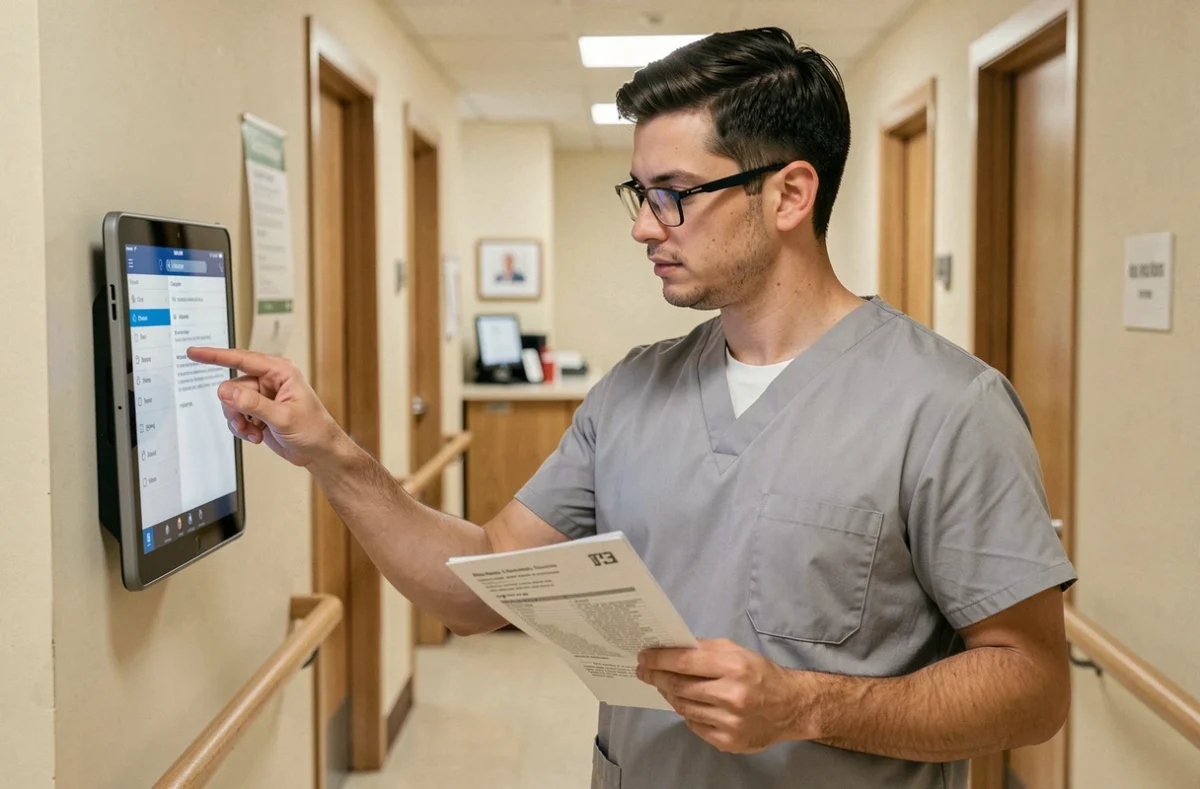
- The tracking module lets staff record each care activity in real time, from a desktop computer or a tablet connected to the facility’s network.
- The medication management module handles prescribing, dispensing, and administration, with alerts for interactions or contraindications.
- Dashboards provide an overview of monitoring indicators (falls, pressure sores, weight, and pain) for all residents.
The modules available depend on the permissions assigned by the administrator. Staff who can’t see an expected module should check their user profile with the IT contact.
Remote access and mobile use
Some facilities set up VPN access so physicians or healthcare managers can use NetSoins outside the local network. Each facility decides whether to offer this option, which requires management approval because it involves additional security measures (stronger authentication and a client certificate).
The NetSoins portal is not a consumer app that can be downloaded from an app store. All access is through a web browser, whether on a computer or tablet, using the facility’s specific address. If you’re unsure of the URL, the simplest option is to contact the facility’s IT department directly rather than search online for a generic address.